sequence
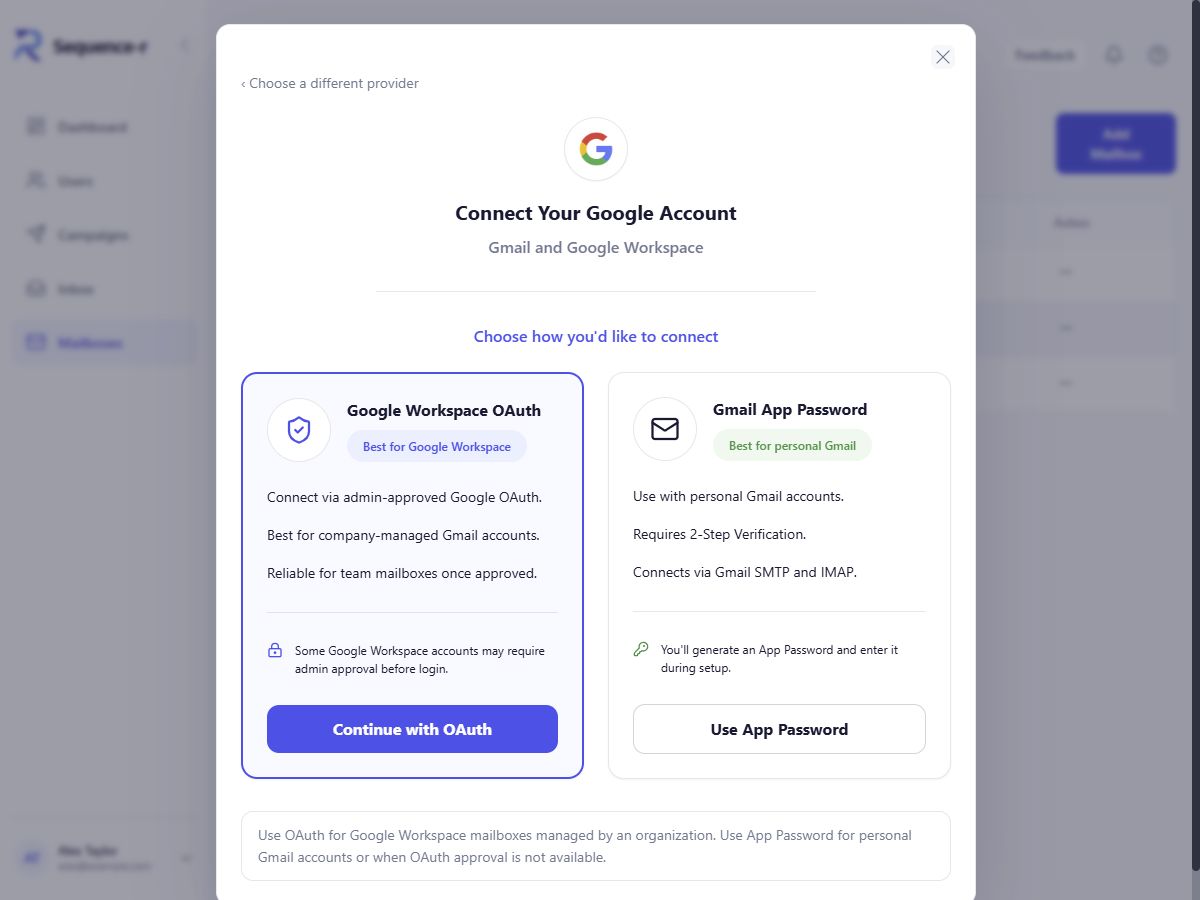
Google Workspace can connect using OAuth through the current Google menu. This lets you review Google’s own permission screen and keeps your normal account password out of the Sequence-r connection form.
Start the Workspace OAuth flow
Open Mailboxes → Add Mailbox → Google. Under Google Workspace OAuth, select Continue with OAuth.
Choose the intended account
On Google’s sign-in screen, select the Workspace account you want to use for outreach. Review the application identity and requested access before continuing. If your organisation restricts third-party access, ask its administrator to review and approve the application through the normal Google Workspace process.
Check the connected mailbox
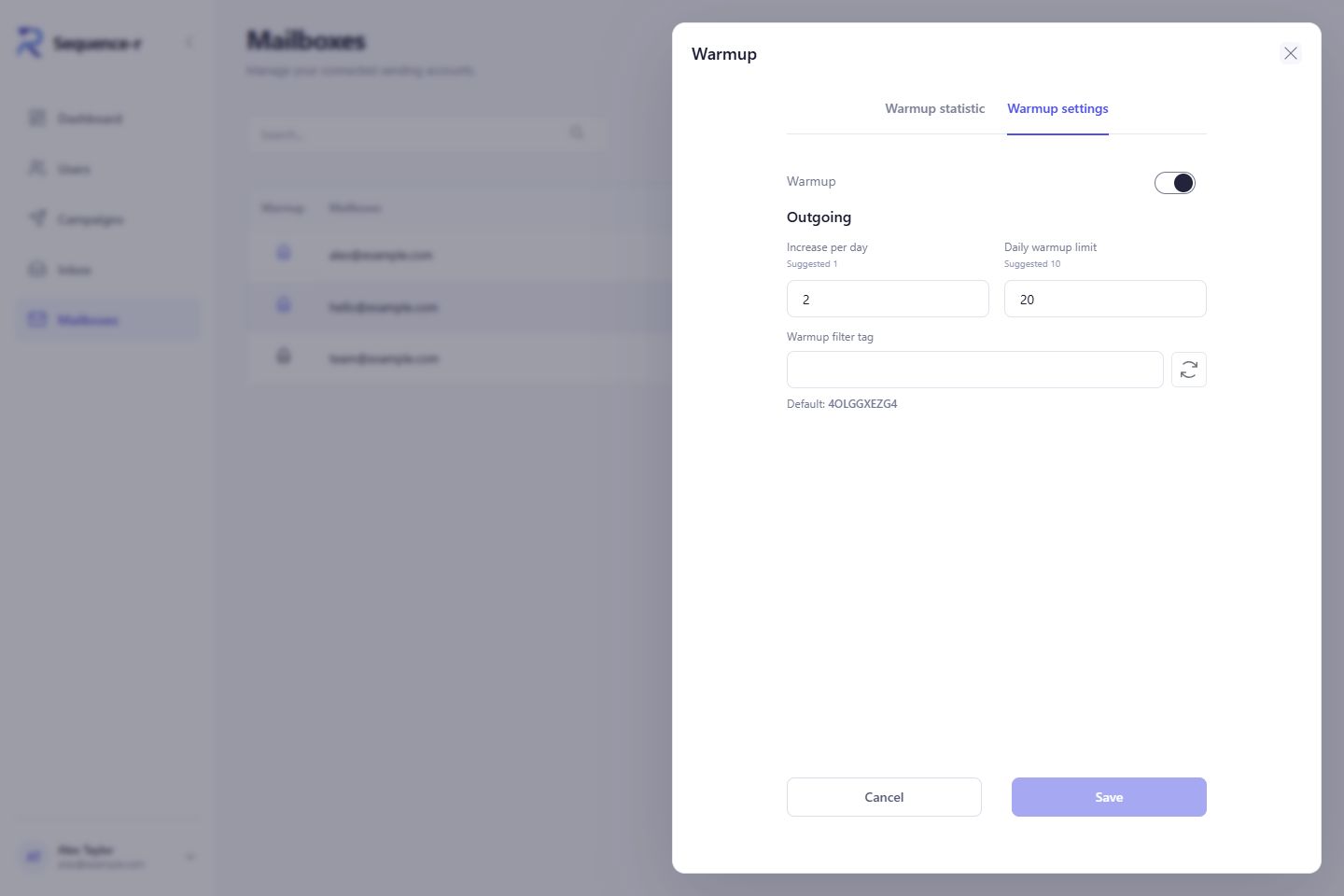
After authorisation, return to Mailboxes. Check that the correct address appears and review its connection status. Open the flame control for warmup; use Warmup settings to review the switch, daily increase and daily limit.
Prepare your first campaign
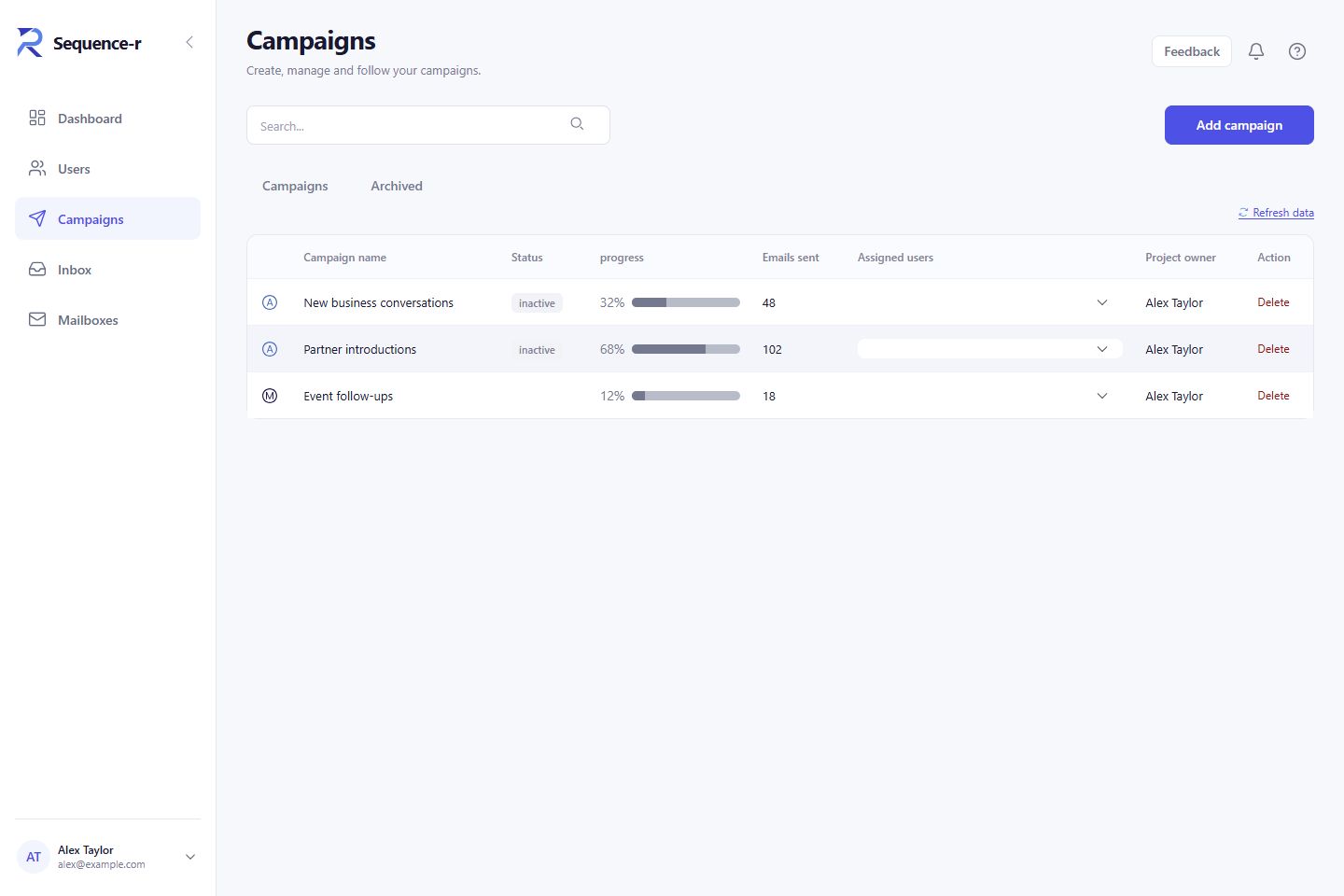
Open Campaigns and choose Add campaign. The automated campaign walkthrough covers the Settings, Data and Sequence tabs. Keep your sender identity and signature consistent.
Before you move on
- Confirm that the account belongs to the right Workspace organisation.
- Resolve any administrator approval request before proceeding.
- Check your connected sender and warmup settings.
Good outreach starts with a useful conversation.
Try Sequence-r for free